Configuration management is a critical part of maintaining reliable and secure IoT deployments.
In cases of misconfiguration, firmware issues, failed updates, or operational testing, restoring a gateway to a previous known-good configuration can significantly reduce downtime and operational risk.
This document outlines the best practices and procedures for restoring Kona Gateways to earlier configurations.
Creating and Restoring a Backup
Once the gateway is configured as desired and is in a state you wish to preserve, you can create a backup of its configuration using the methods outlined below:
Additionally, a backup of the gateway’s configuration associated with the previous BSP version is automatically generated whenever the gateway performs a BSP upgrade, unless this behavior has been explicitly disabled.
Creating and Restoring a Backup using Tektelic Network Server or Kona Element
-
Log into your Tektelic Network Server account or Kona Element account
- Select "Gateway Groups" and select the gateway group belonging to the gateway you wish to create a backup for. Select "Manage Gateways"
- Select the gateway you wish to create the backup for and ensure it is online.
- In the tabs of the various gateway management features available on the Tektelic Network Server / Kona Element, scroll to the right using the arrow and select "Backups"
- Click the Cloud icon to create the backup as seen in the screenshot below:
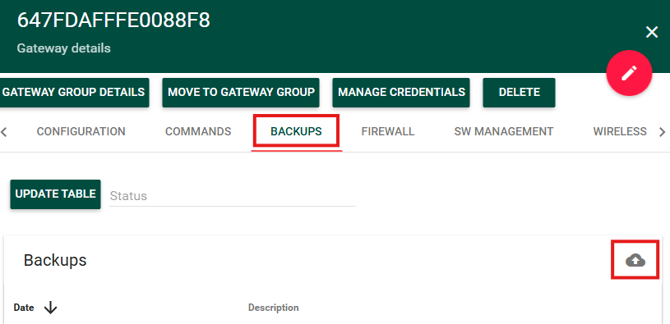
- Once the backup has been created, you can click "Update Table" to view the backup you have just created
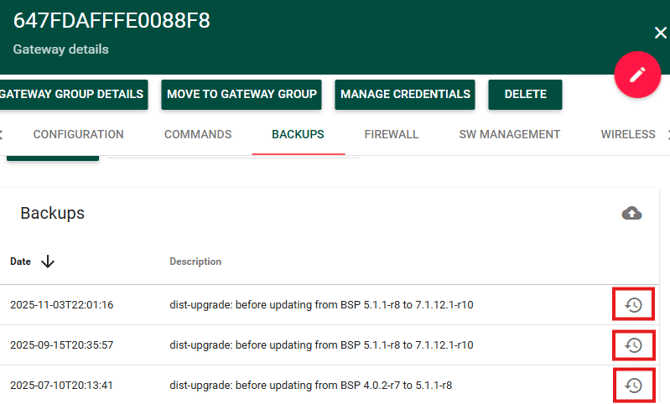
- To restore the gateway to an existing backup, click the circular symbol on the right hand side of the backup you wish to restore to listed in the table as seen below:
Creating and Restoring a Backup using the SSH Command Line
-
Using an SSH client such as PuTTy or TeraTerm, connect to your gateway's IP address and log into your gateway using the credentials provided on the Test Summary sheet that comes with your gateway
- Initiate a system backup by running the command system-backup -b
- Once the backup has been created, you can view it using the command system-backup as seen in the below screenshot:

- To restore to your backup, run the command system-backup -r xxx (Where xxx corresponds to the backup number you would like to recover to as seen in the screenshot above)
By default if no backup number is specified the gateways will restore to the 000 backup as 000 is always the most recently created backup.
Creating and Restoring a Backup via KonaFT
-
Connect to your gateway via KonaFT by entering the IP address for your gateway and clicking the "Start" button.
- Select "Board Details" from the available tabs at the top and then select "Backup and Restore"
- At the bottom of the page, enter a description for the backup and click "Start Backup" as seen in the screenshot below:
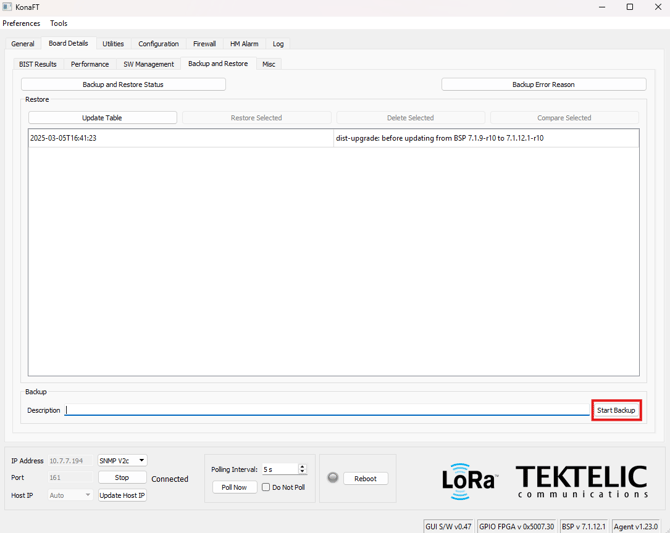
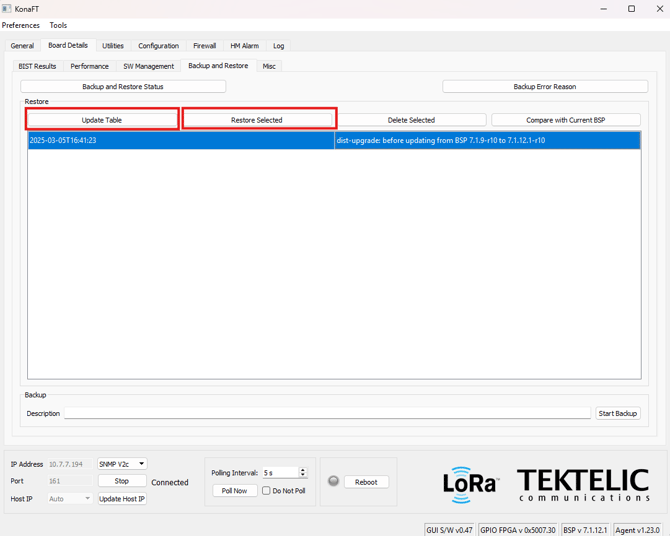
- To view your existing backups, click "Update Table"
- To restore the gateway to an existing backup, select the backup you wish to restore the gateway to from the Table and click "Restore Selected"